1. Click the up arrow on your TaskBar.

2. RIGHT-Click the Printer Icon with the Green plus sign on it.

3. Click "Login with LDP..."

4. SIgn into your MISD Account with the same log-in as Google.
Firstname.Lastname@misd400.org
password: 654321.Mercer
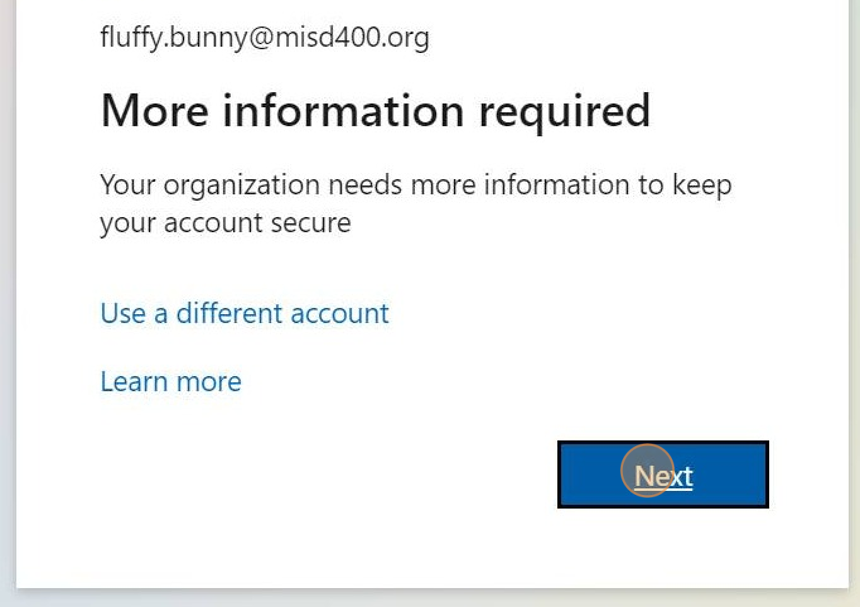
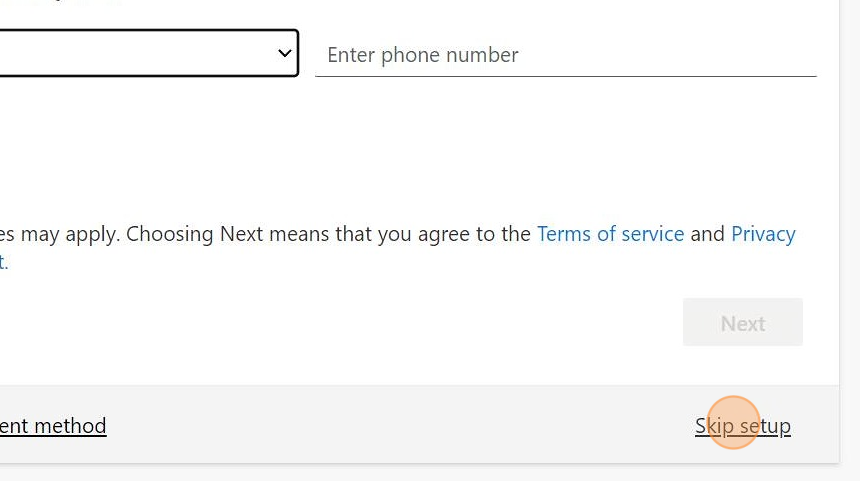
5. If it asks you for your phone number, click "skip setup"
6. Go back to the TaskBar and RIGHT-click the printer icon.

7. Click "View Installed Printers"

8. Click "Items View"

9. That's it! Now you have all the HS Printers installed on your device!

Made with Scribe